The Ultimate 3D Scanner for iPhone
TiiHub uses your iPhone's LiDAR scanner and Apple's Object Capture technology to turn real-world objects, rooms, and spaces into photorealistic USDZ models. Scan a Lego MOC, a sneaker, a sculpture, a salt lamp, your kid's clay project. Then decorate any room in AR with what you captured.
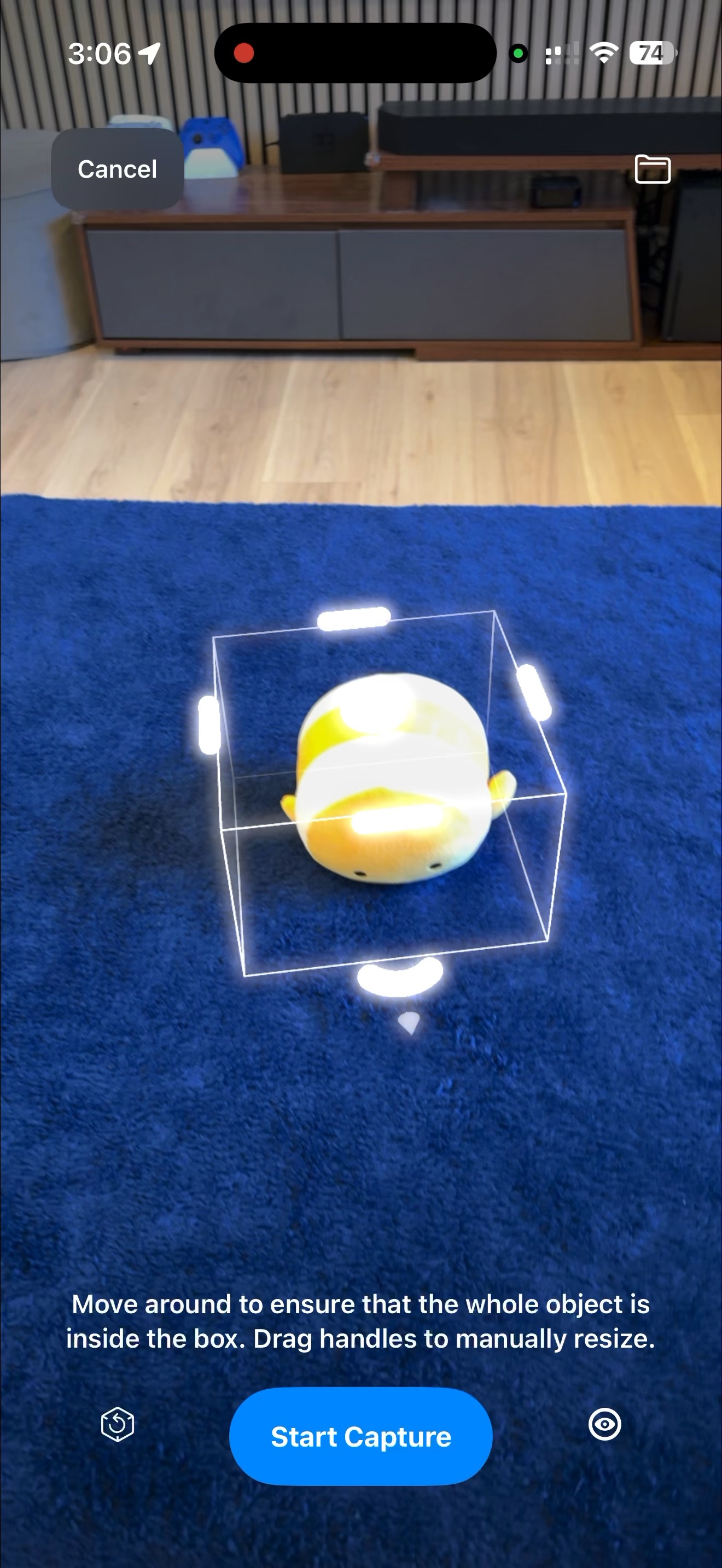
1. Frame your object
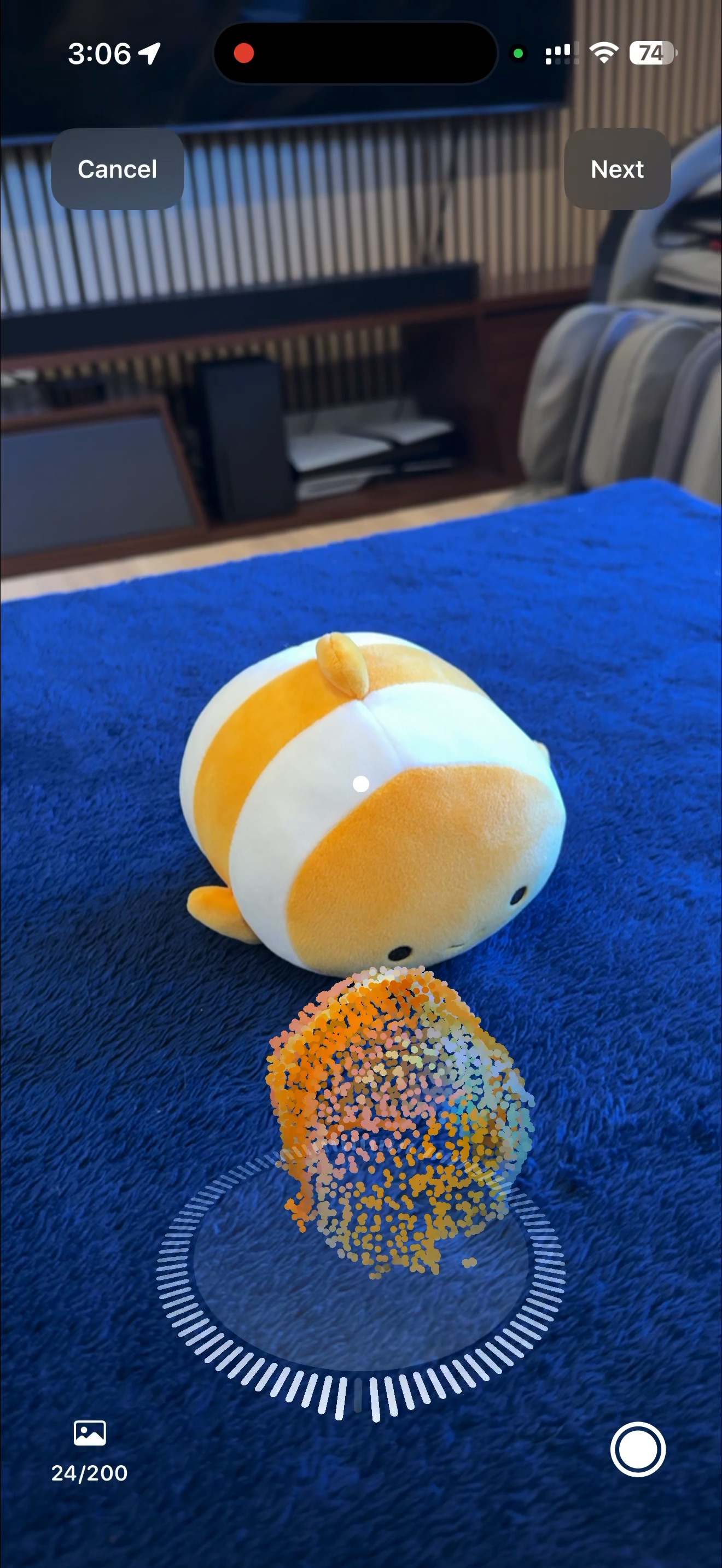
2. Walk around and capture
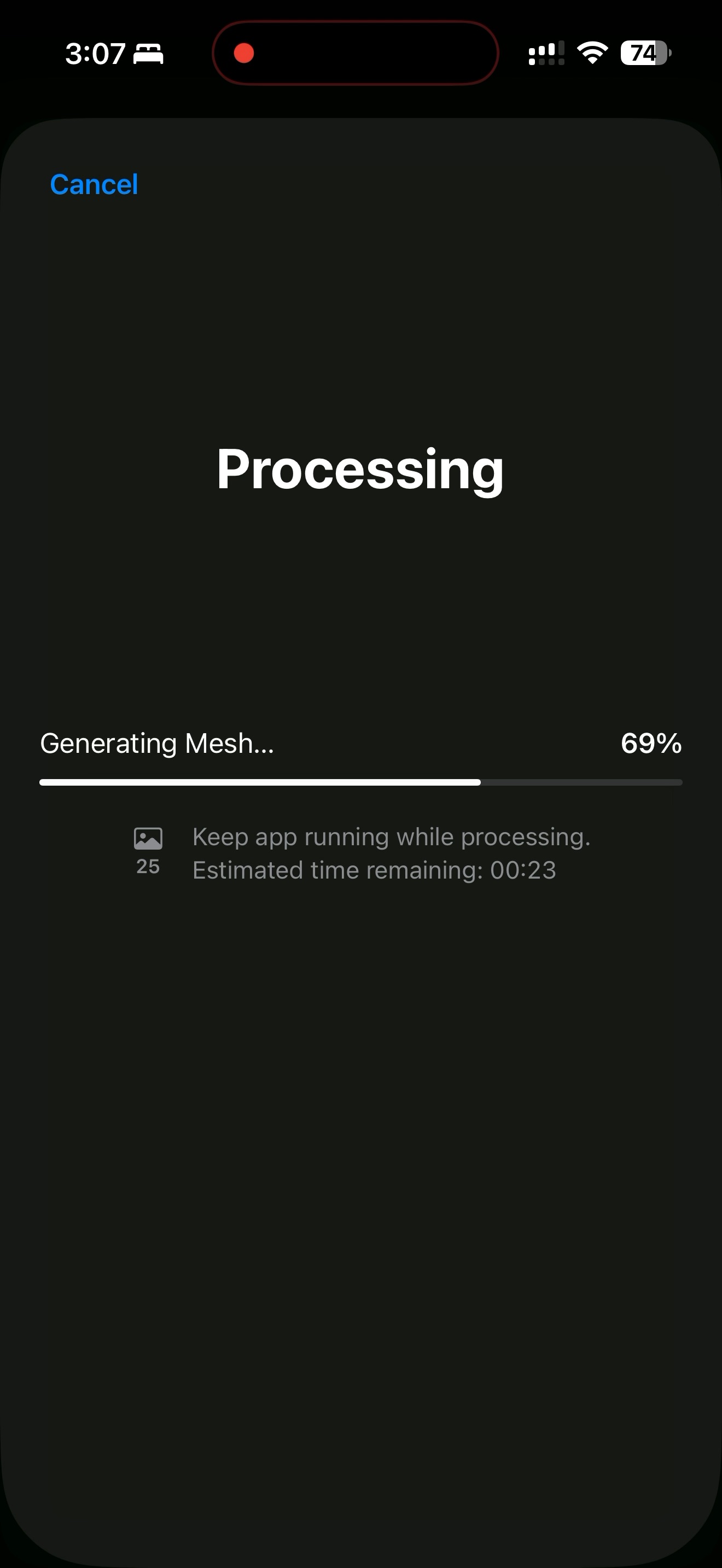
3. On-device reconstruction
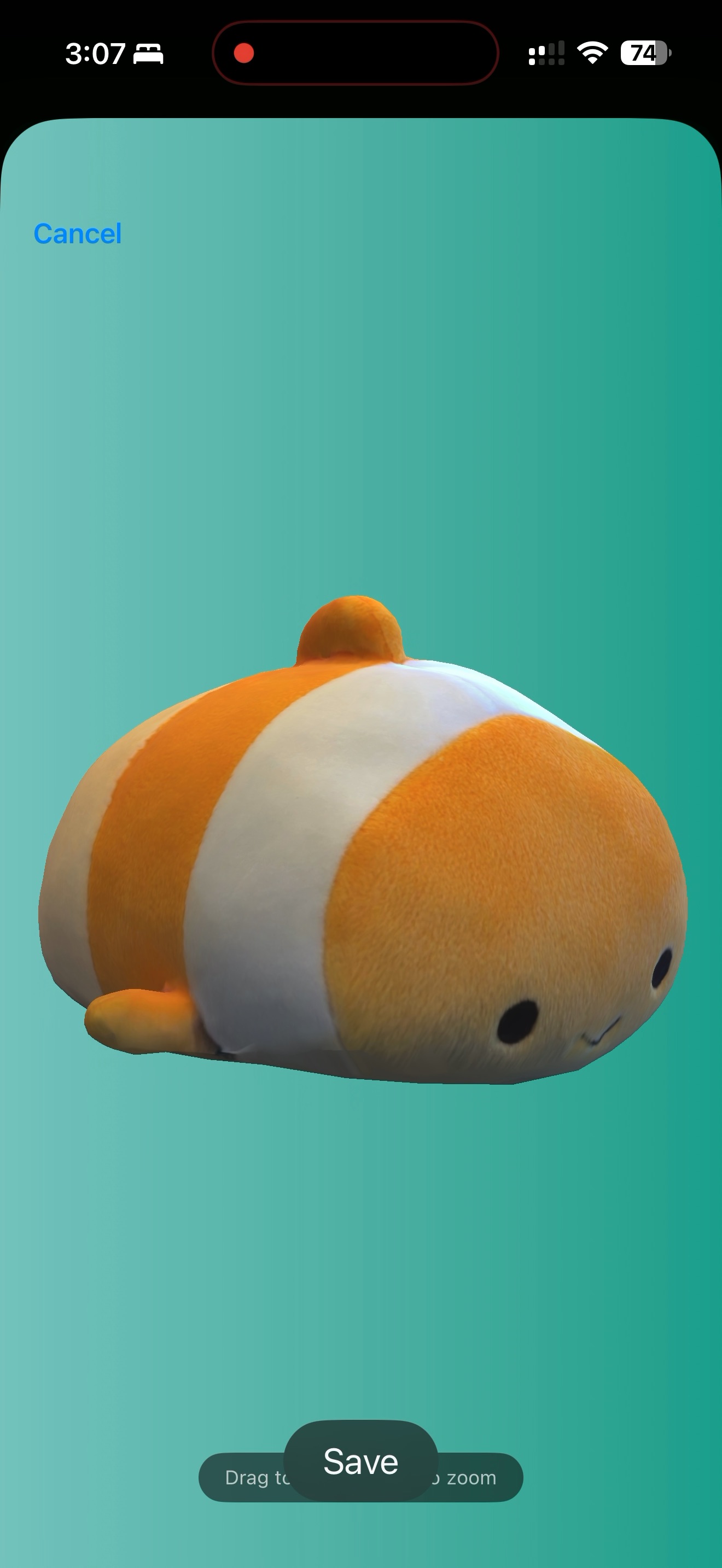
4. Preview your 3D model
How 3D scanning works in TiiHub
The entire scanning process happens on your iPhone. No cloud processing, no waiting overnight. TiiHub guides you through every step with real-time feedback and tutorial videos.
1. Position your object
Place the object on a flat surface with room to walk around it. TiiHub detects the object and shows a bounding box you can adjust to frame it perfectly.
2. Walk around and capture
Slowly circle the object while TiiHub automatically captures images. The app gives real-time feedback: move closer, slow down, more light needed, or aim at the object.
3. Flip for full coverage
If possible, flip the object over for a second pass to capture the bottom. TiiHub detects whether the object is flippable and adjusts guidance accordingly.
4. On-device reconstruction
Apple's photogrammetry engine processes your captures into a USDZ 3D model. You can watch the six processing stages: preprocessing, alignment, point cloud, mesh, texturing, and optimization.
5. Preview and inspect
Inspect your 3D model in an interactive viewer. Rotate, zoom, and check quality from every angle before deciding to save and share.
6. Share as a post or collectible
Post your scan to TiiHub as an unlimited item or a limited-edition drop with serial numbers. Add it to your collection, and others can collect and place it in AR.
Two scanning modes
Object Capture
Designed for scanning individual objects. Uses object masking to isolate the subject from its background. Walk 360° around the object for complete coverage. Best for items you can place on a table and circle.
Requires iPhone with LiDAR (iPhone 12 Pro or later)
Area Capture
Captures scenes and surfaces including the surrounding environment. No object masking. Sweep your camera across the subject. Great for terrain, walls, large objects, or anything too big to walk around.
Requires iPhone with LiDAR (iPhone 12 Pro or later)
Room scanning with RoomPlan
TiiHub also includes Apple's RoomPlan technology for scanning entire rooms into 3D floor plans. Point your iPhone at walls, floors, and ceilings, and RoomPlan automatically detects walls, doors, windows, and furniture. The result is a USDZ floor plan you can share and view in 3D.
Smart capture features
Real-Time Feedback
TiiHub gives live guidance during capture: move closer, move slower, aim at your object, more light recommended. Each message maps to specific capture quality issues.
Auto + Manual Capture
Images are captured automatically as you move around the object. You can also tap the manual capture button for tricky angles that need extra coverage.
Image Counter
A real-time counter shows how many images have been captured (minimum 10 for processing). Alerts you if you're over-capturing, which slows reconstruction.
Bounding Box Adjustment
During the detection phase, drag handles to precisely frame your object. Reset the box anytime if detection needs to start over.
Tutorial Videos
Built-in tutorial videos play on your first scan. Different videos for object vs area mode, and for iPhone vs iPad. Disable them anytime in settings.
Checkpoint Recovery
Processing checkpoints are saved automatically. If reconstruction is interrupted, TiiHub can resume from where it left off instead of starting over.
See it in action
Watch the full pipeline from 3D scanning on iPhone to placing objects in AR on Apple Vision Pro.
Scan it. Decorate. Collect.
Every scan goes three places. Drop it into your real room in AR right on iPhone. Post it to a Hub or your friends feed. Keep it on your digital shelf forever. Limited-edition scans get unique serial numbers, creating real scarcity without any blockchain or crypto.